What you should know before starting the course
Everything you need for a good start: where things are on the platform, how lessons and homework work, and how to study so that you really make progress.
On this page
Signing in
You created your account with an email address and a password when you registered for the course.
- Not signed in yet? Click the user icon in the top-right corner to sign in.
- On any other phone, tablet or computer, sign in with the same email and password.
- Forgot your password? Choose "Forgot your password?" on the sign-in screen, set a new one from the email we send you, and sign in with it.
- Use one account for everything: your progress, homework and certificates are linked to it.
Your student dashboard
After signing in, open the profile menu in the top-right corner and choose "Student Dashboard". This is your home base.
- Group courses: the course with your teacher, at the top.
- Standalone courses: extra self-study courses that were added to your account together with your group.
- A progress bar on every course card shows how much you have completed.
- After each lesson a homework banner appears here. Leave it open until your homework is done: once you close it, it does not come back.
- On the day of your lesson you will also see a banner with the button to join the lesson in Zoom.
- The tabs below hold your word cards (quizzlets), certificates and badges.
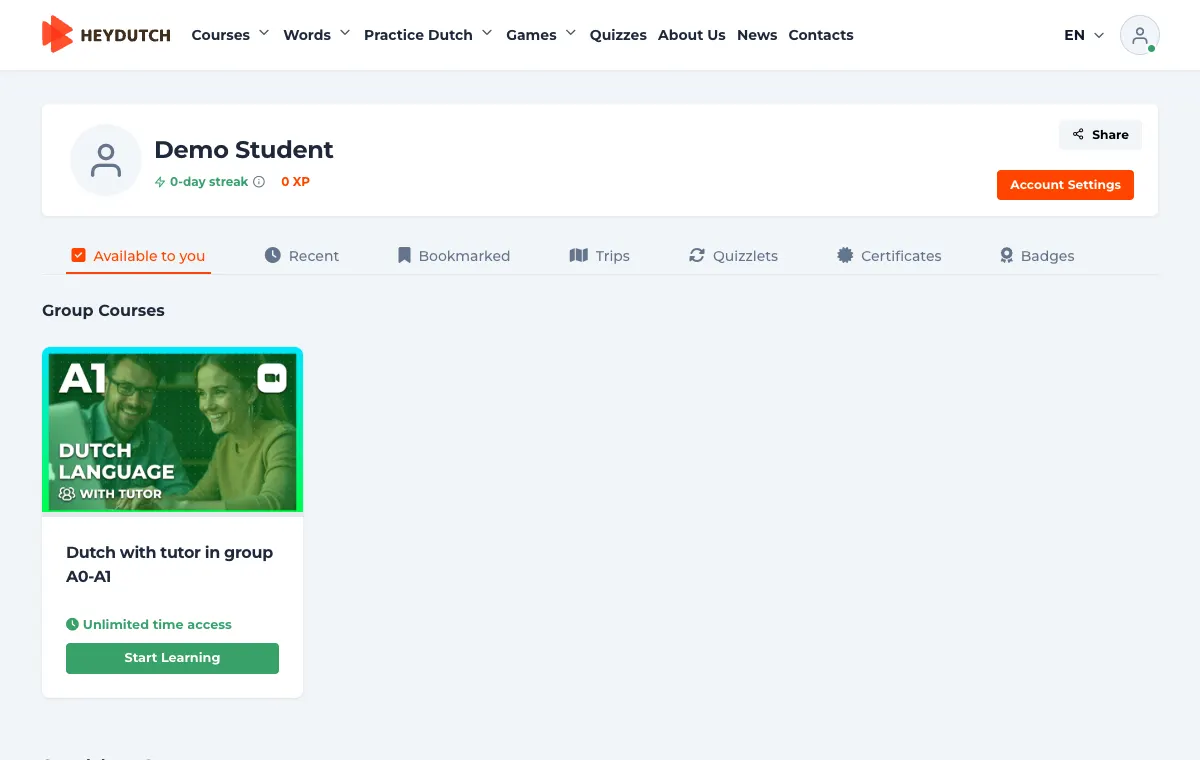
Your group course with the teacher
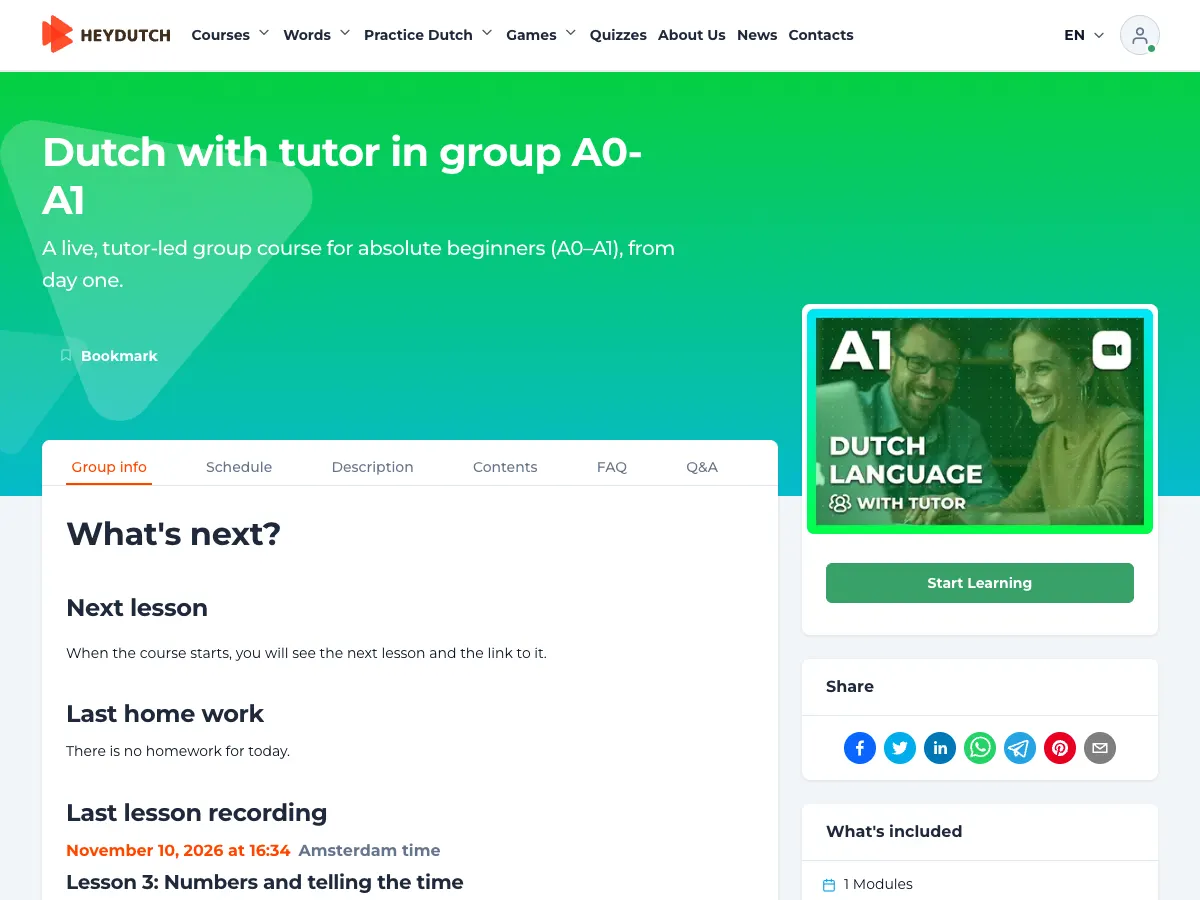
Everything about your group lives in one place: the course with your teacher. Open it from the dashboard.
- Group info: the date of the next lesson and its Zoom link, your latest homework and the recording of the last lesson.
- Schedule: all lesson dates of your group.
- A link to your group's Telegram chat.
- "Start Learning" or "Continue Learning" opens the course structure with every lesson, recording and homework.
Live lessons in Zoom and recordings
Lessons take place online in Zoom with your teacher and a small group, usually once a week for 2 hours.
- Join from the Zoom banner on your dashboard or from the group page.
- If a lesson ever has to move (it is rare), we announce it in the Telegram group and update the date on the platform.
- The homework for a lesson opens during or right after that lesson.
- The recording appears on the platform after the lesson. Zoom needs some time to process the video, so it is usually there within a few hours, at the latest the next day.
- Missed a lesson? Watch the recording and do the homework, so you stay with the group.
- Listen to the lesson recording whenever it suits you: many students listen on the way to work, while working, while cooking or eating.
- Watch the lesson video again. When the tutor asks a question, pause, answer it out loud, then continue.
How a course works: lessons and "Mark as done and next"
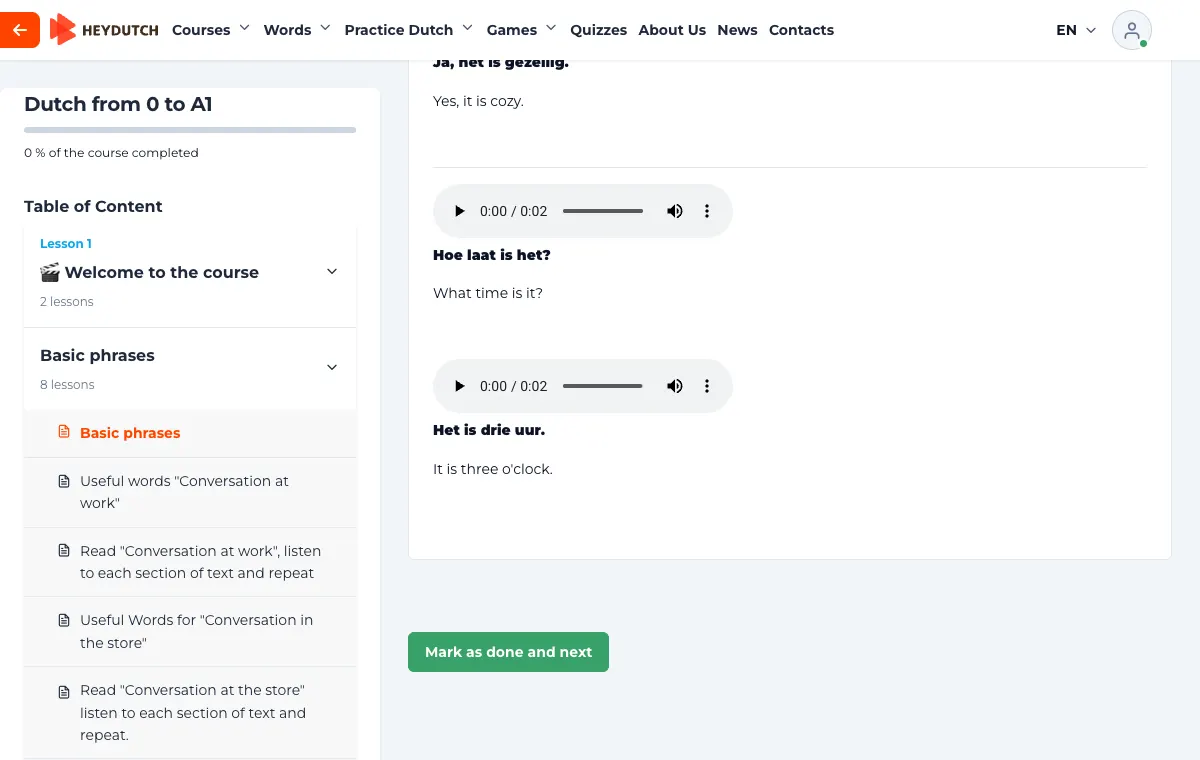
Every course is split into modules. Inside a module you find lessons (explanations, texts, lesson recordings) and exercises.
- When you have finished a lesson, press the green "Mark as done and next" button. This is important: it saves your progress and remembers where you stopped.
- Next time, "Continue Learning" takes you straight to the first lesson or exercise you have not finished yet.
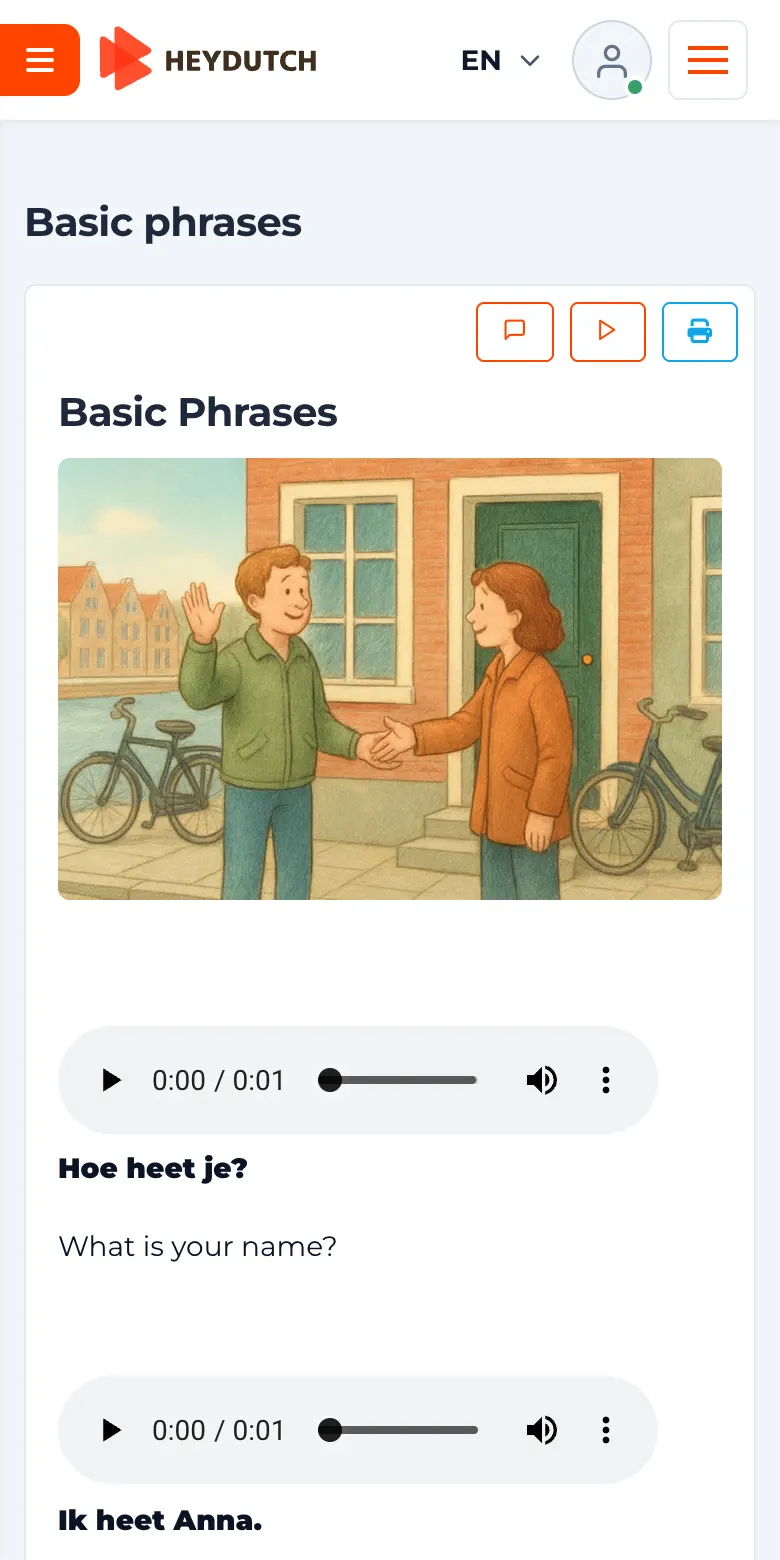
- On a phone, press the menu button to the left of the logo to see the whole course: previous lessons, homework and tests.
- A green mark next to an item in the course menu means you have completed it.
Homework: how to do it well
After every lesson you get homework. It usually combines the self-study course of your level with other courses added to your account, and it follows exactly what you did in class.
- Start by reviewing the lesson theory, then move on to the exercises.
- After a grammar module you usually get a text module on the same topic. It has these blocks:
- Useful words: learn the new words you will meet in the text. Read each word aloud, listen to the audio and practise the pronunciation until you feel you say it well.
- Listen to the text: listen and try to understand it. Don't worry if not everything is clear the first time. Listen once more and try to catch the words you have just learnt.
- Read the text: read it aloud and try to understand it. If something isn't clear, use the translation under the text.
- Listen and follow the text: play the audio and follow the text with your eyes, connecting how words sound with how they are written. Then practise pronunciation sentence by sentence, the same way as with the words.
- Don't skip the pronunciation practice and say everything out loud: the next assignment is often to record yourself reading the same sentences.
- Word cards and games fix the new words in your memory.
- When someone in your group completes a module, our Telegram bot congratulates them in the group chat. Support them with a like and let it inspire you to sit down for your homework too. And when you finish a module, the group will cheer for you! 🏆
Exercises and quizzes: how to pass them
You will meet many types of exercises: matching, putting words in order, choosing the right answer, filling in gaps, translating sentences and recording your pronunciation.
- Exercise types and what to do:
- Single choice: pick the one correct answer.
- Multiple choice: tick all correct answers.
- Fill in the blanks: type the right word in each gap.
- Match pairs: connect each word or phrase with its pair (translation, picture, answer).
- Put in order: drag the words or parts of a sentence into the right order.
- Translate a sentence or text: write your translation; AI checks it and explains mistakes.
- Write a message: write your own text on the given topic.
- Record audio: read or say it out loud and send the recording.
- Pronunciation: say the word or sentence into the microphone and the system checks your pronunciation.
- Talk to AI: have a spoken conversation with an AI partner on the given topic.
- Exercises with audio where you fill in the missing part or put the words in order: first try on your own. Compare the translation with what is already there, work out what is missing, build the sentence, and only then listen to the audio to check yourself.
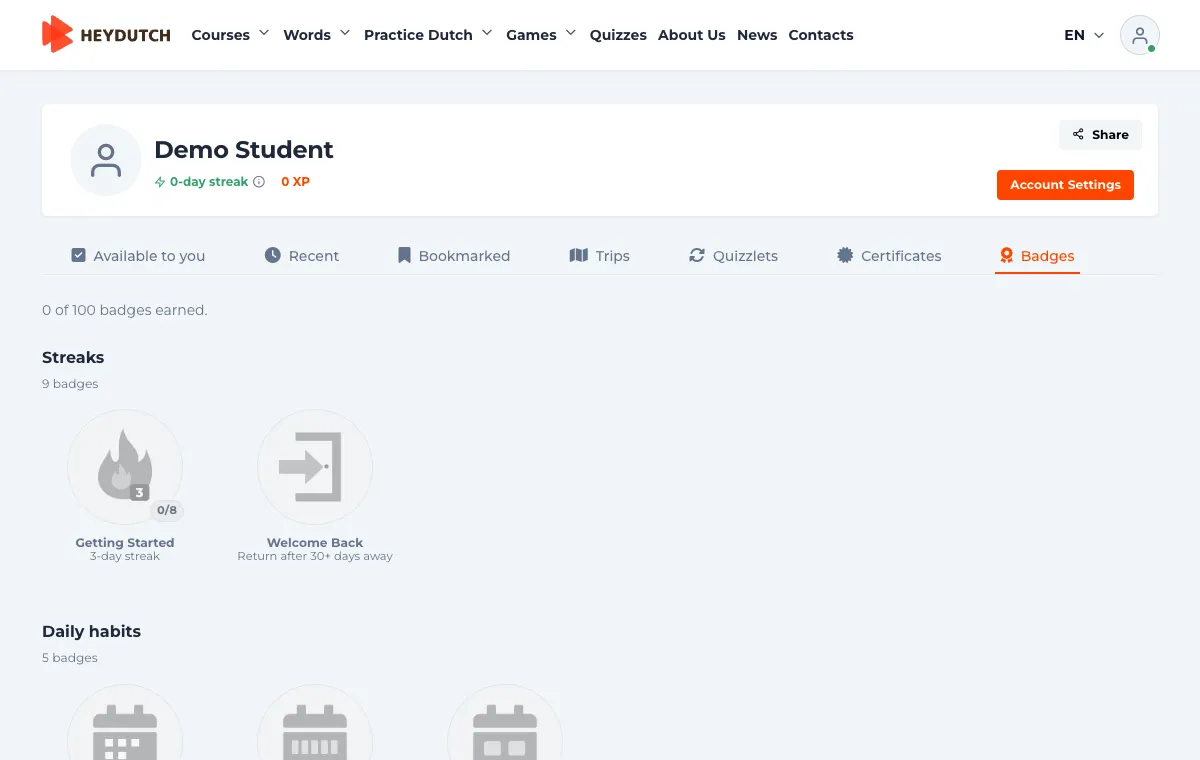
- Each quiz has a pass mark, usually 75%. If you do not reach it, simply try again: there is no limit.
- Written answers are checked by AI. It tells you what is right and what to fix, so you learn from a mistake straight away.
- Try without the hint first. Open the hint only if you are really stuck.
- Words with a blue underline have a translation: double-click the word on a computer, or press and hold it on a phone.
- A quiz counts as done automatically as soon as you reach the passing score. You don't need to mark it, just move on.
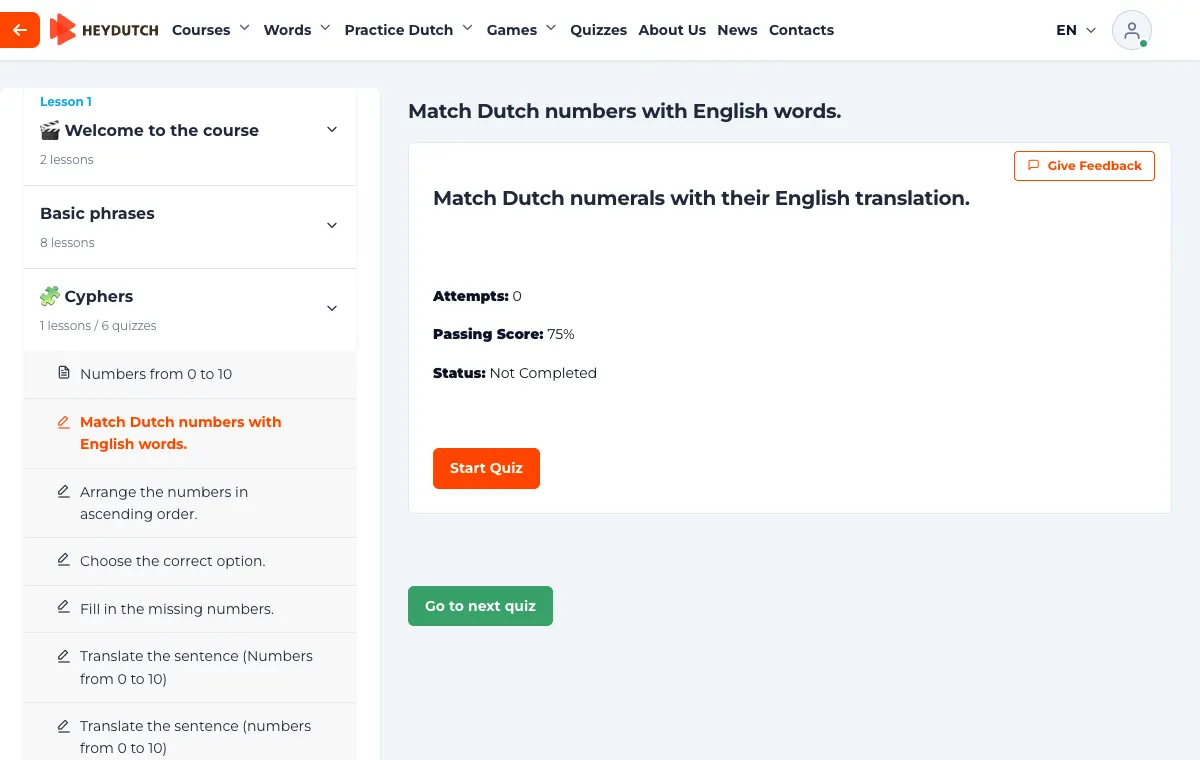
Words: quizzlets and games
A quizzlet is a set of word cards on one topic. A few are built into the course, and more than 500 sets are waiting in the menu under Words > Quizzlets.
- Listen to every word, shuffle the cards or show the Dutch side first.
- "Type the Dutch word" practice mode: you see the translation and type the Dutch word yourself.
- Memory game: find the pairs of Dutch words and their translations.
- Create your own quizzlets: select a Dutch word or phrase anywhere on the site and a small banner appears at the bottom of the page. Click “Add to quizzlet” to save it for practice.
- More word games are in the Games menu.
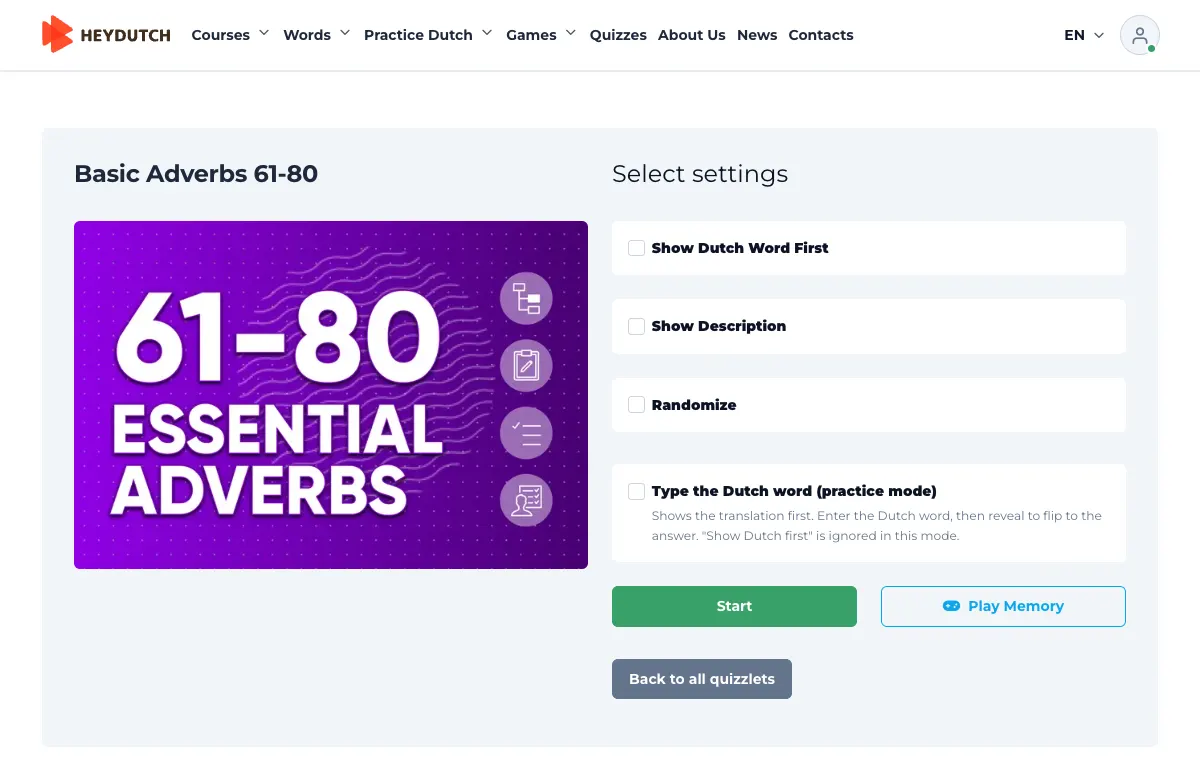
News: reading practice at your level
Under News you find real Dutch news, rewritten for levels A1, A2 and B1. A great daily habit for reading and listening.
- Choose your level at the top of the article.
- Learn the key words first; the + button adds a word to your quizzlet.
- Turn on the audio and try to understand as much as you can without reading.
- Read each sentence out loud and translate it yourself, then tap the sentence to check the translation.
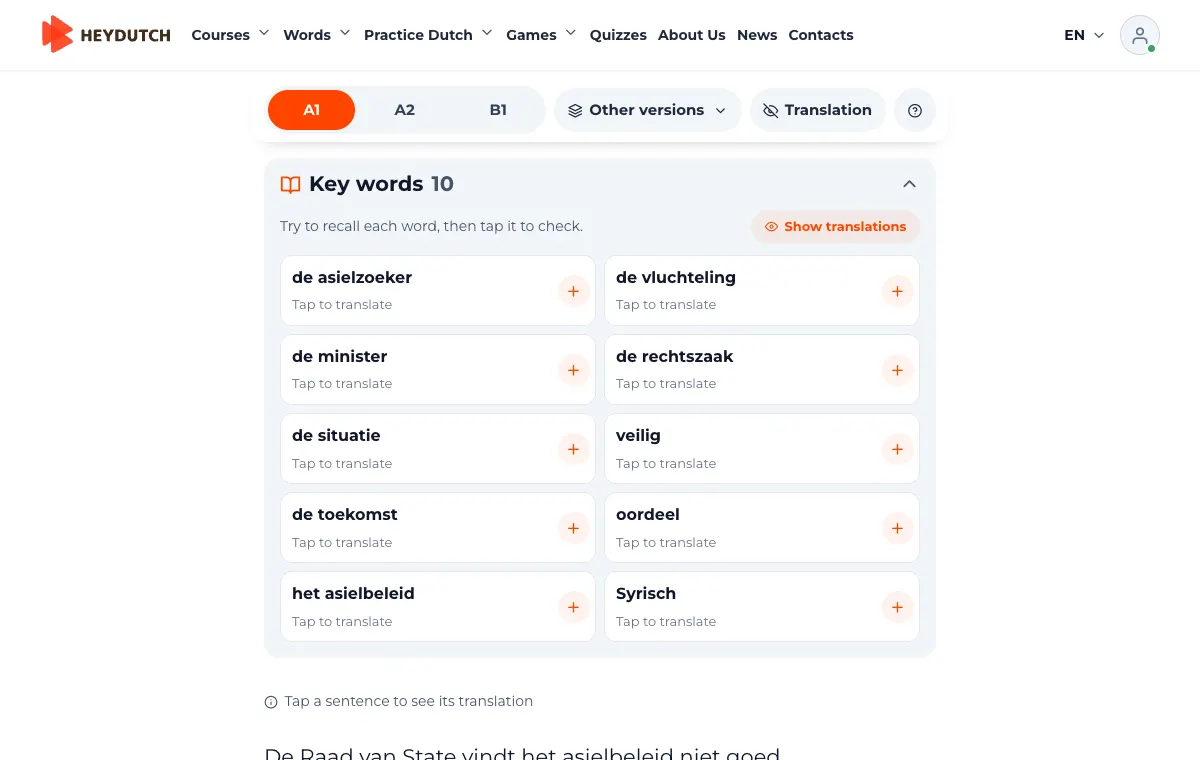
Progress, XP and the leaderboard
Everything you do for your Dutch counts: lessons, quizzes, games, quizzlets, articles, homework and attending class all earn XP.
- Study a little every day to grow your streak.
- Earn badges for milestones; see them in the Badges tab of your dashboard.
- Compete with students across the whole platform for the number 1 spot in the rating, and team up with your group to take first place among the groups.
Do out loud what is meant to be done out loud
Understanding a language and speaking it are trained by different parts of the brain. Nobody wants to end up understanding everything but not being able to say anything.
- Every "listen and repeat" and "read out loud" task really needs your voice, even if you are alone.
- Repeat a word or sentence as many times as you need, until you are happy with it. It does not have to be perfect; the effort is what counts.
Questions and support
You are never on your own.
- Telegram group: the main channel of your group. Lesson links, schedule changes and homework news are shared there, and you can ask your teacher and classmates.
- The "Questions?" button in the bottom-right corner of the site: write to us via Telegram, WhatsApp, Messenger, email or phone.
- Found a mistake in a lesson or exercise? Right-click it (press and hold on a phone) and choose "Report an issue".
Email: support@heydutch.com
Study comfortably with the HeyDutch app
Small daily chunks are easiest with the app on your phone. Your courses, progress and homework are the same as on the website, so you can start on a laptop and continue on the train.
- Sign in with the same email and password.
- Android: download the app from Google Play.
- iPhone: the app is currently available as a beta through Apple TestFlight. Install TestFlight first, then open the invitation link.


Ready? Your first step
Open your dashboard, find your group course and do a small part of your homework today. Veel succes!
Open my dashboard